
Moodboard Export To PowerPoint & Model Replacement Improvements

Version 4.0.52866 · September 14th 2026
Summer ends with a brand new VORTEK Spaces update focused on improving the model replacement experience for Beta testers while making PowerPoint Moodboard exports available to all users. Turn your VORTEK Spaces Moodboards into customizable Microsoft PowerPoint presentations, while benefiting from more reliable model replacements and several workflow, stability and interface improvements.
| Feature | What Changed |
|---|---|
| 📊 PowerPoint Moodboard Export | Moodboards can now be exported directly to Microsoft PowerPoint and customized for richer presentations. |
| ⚙️ Model Replacement Improvements | Automatic and standard model replacement workflows are now more reliable and easier to manage with clearer indicators. |
| 🎨 Material Library Management | A new Expert Mode option allows to hide discontinued materials that are no longer available for sale. |
| 🎬 Video Editing | You can now move the camera while editing animation properties. |
| 🐛 Bug Fixes and Improvements | This update also includes import stability, project preview, animations and interface improvements. |
PowerPoint Moodboard Export Now Available to All Users
Previously available as a Beta feature, Moodboard export to Microsoft PowerPoint is now available to all VORTEK Spaces users.
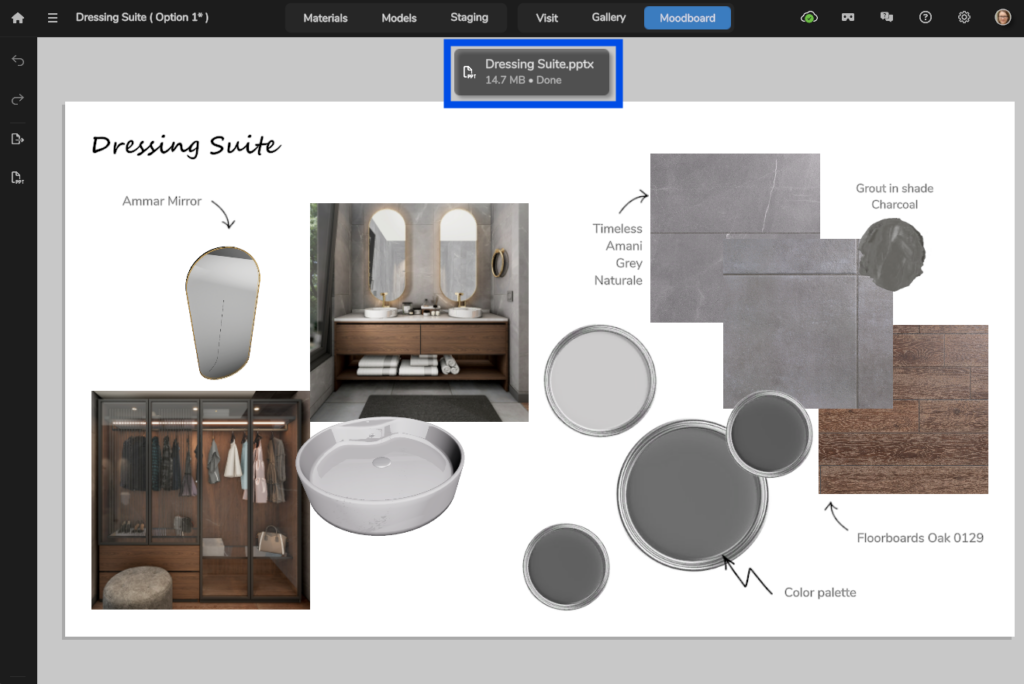
This feature allows you to export your original VORTEK Spaces Moodboard directly to a Microsoft PowerPoint .pptx file. This makes it easier to transform your Moodboards into flexible and personalized presentations for design reviews, customer meetings and sales presentations.
To export a Moodboard, open the Moodboard tab and click the new Export to PowerPoint button in the left-side menu. Once the export is complete, a notification banner will appear on the screen. Click the banner to open the exported file directly.
After opening the file in Microsoft PowerPoint, you can customize the presentation by adding your branding, notes, product information and any other content required for your customer.
Hide Depreciated Materials
Expert Mode users now have access to a new option for keeping their material libraries cleaner and easier to browse.
The new Hide depreciated materials option hides materials from outdated collections that are no longer available for sale. This helps you focus on current products when selecting materials for a new design.
To enable this option, open Settings > Advanced and toggle Expert Mode, then activate “Hide depreciated materials“.
Depreciated materials already used in existing projects will remain accessible and can still be modified. This ensures that older projects remain fully editable, even when their original materials are no longer displayed in the library.
(Beta Users Only) Improved Automatic Model Replacement
Several improvements have been made to the automatic model replacement system. These changes improve reliability when reopening projects and make it easier to manage the models included in your automatic replacement list.
- Fixed an issue that could cause certain replaced models to be lost when reopening a project.
- Added a warning that allows you to add a replaced model to the automatic replacement list.
- Fixed an issue that could prevent automatic replacements from being applied when the original models had been modified.
These improvements help automatic replacements remain consistent throughout the lifecycle of a project, including when reloading a design or working with a modified version of the same CAD file.
Automatic model replacement is only available in Expert Mode. To enable it, open Settings > Advanced and toggle Expert Mode.
To access the new automatic model replacement feature and more, join our Beta Program now !
Improved Standard Model Replacement
The standard model replacement feature has also been improved with a new restoration option, more accurate positioning and additional reliability fixes.
- A new button is now available in the toolbar of a replaced model, allowing you to restore the original model.
- The surface detection algorithm has been improved so that replacement models are positioned more accurately.
- Fixed an issue that could cause a project to be lost when it was reloaded after replacing a model imported from a Collada file.
The new restoration button makes model replacement easier to reverse, while the improved surface detection system helps replacement models align more accurately with the original design.
Other Fixes & Improvements
- You can now move the camera while editing animation properties in the Viewpoints List.
- Fixed missing ON/OFF animation icons in Medium and Low Quality modes.
- The application’s End User License Agreement (EULA) has been updated.
- Several paint brand logos have been updated.
- Project preview images are now saved using a 16:9 aspect ratio.
- Improved stability for
.igesfile imports. - Fixed an issue that could cause hangers to attach to objects other than closet rods.
- Fixed an issue that could prevent certain automatic material replacements from being applied.
- Removed the supersampling factor from batch export options.
- Other fixes: stability and user interface.
Frequently Asked Questions
How do I export a Moodboard to PowerPoint?
Open the Moodboard tab and click the Export to PowerPoint button in the left-side menu. Once the export is complete, click the notification banner to open the generated .pptx file. The exported presentation can be edited like any other Microsoft PowerPoint file. You can add your branding, notes, product information, images and any additional content you need.
Who can use PowerPoint Moodboard exports?
PowerPoint Moodboard exports are now available to all VORTEK Spaces users. Beta Program access is no longer required to use this feature.
What happens when discontinued materials are hidden?
Materials from discontinued collections will no longer appear in the material library. However, discontinued materials already used in existing projects will remain accessible and editable.
Can I restore a model after replacing it?
Yes. Select the replaced model and use the new restoration button in its toolbar to restore the original model.
Can I try VORTEK Spaces for free?
Yes. VORTEK Spaces offers a free trial — no credit card required. Start your free trial →
How do I update to VORTEK Spaces?
Download the latest version directly from your VORTEK Spaces application, or check for updates on the VORTEK Spaces Microsoft Store page.
Get the Latest Version
Start your free 14-day trial — no credit card required →
Already a subscriber? See all plans and pricing → · Watch video tutorials →