
Dynamic VR Project Reveal, Enhanced Performance, Ultra Quality Photo Generation & More
Version 4.0.54123 · October 7, 2026
Fall 2026 brings several new additions to VORTEK Spaces! This update introduces a new animated project reveal for virtual reality presentations, along with a major performance improvement option for high-resolution displays. It also brings brand new ways to generate high quality pictures faster than ever, while adding new options to help you refine your images, videos and project presentations.
| Feature | What Changed |
|---|---|
| 🚀 Performance Improvements | Improve application performance on high-resolution displays with a new option available in the setting’s Advanced tab. |
| 🥽 Dynamic VR Project Reveal | Reveal your project inside a compatible VR headset with an animated project reveal transition visible from the headset. |
| 📸 New Bulk Action : Generate Ultra Quality photos | Export every viewpoint at maximum quality in a single operation from the project list. |
| 🎬 New Presentation Option | Control the maximum opening angle of animated doors and better distinguish exported videos and screenshots. |
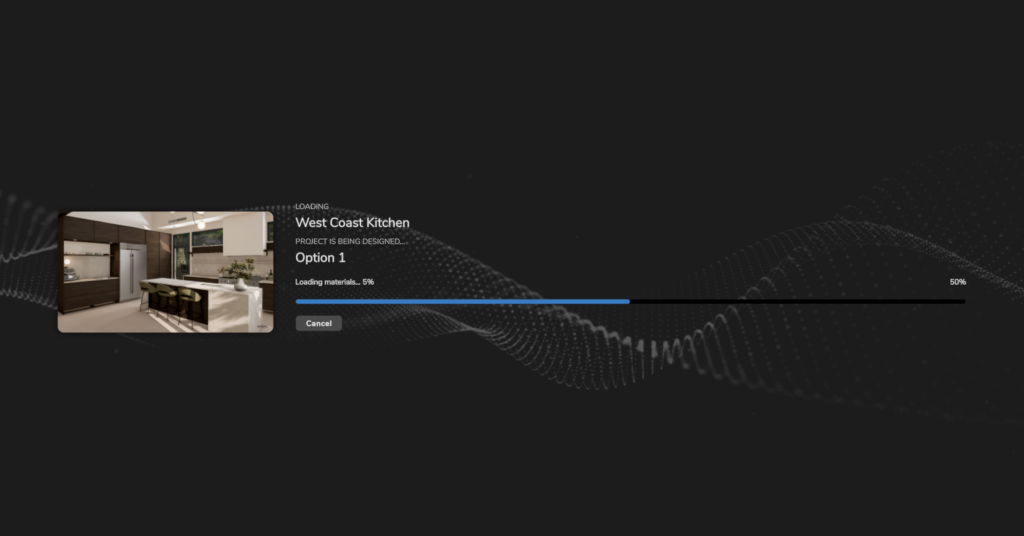
| 🎨 Redesigned Project Loading Pages | Project previews are no longer stretched, loading steps are clearer and cancelling a loading is more responsive. |
| 🐛 Bug Fixes and Improvements | This update also includes rendering corrections and several stability and interface improvements. |
Major Performance Optimization for High-Resolution Displays
A new performance option can now be applied to VORTEK Spaces to significantly improve application responsiveness while editing a project.
The new Limit Render Resolution option limits the application’s real-time rendering resolution to Full HD at 1920 × 1080. This optimization is especially useful when working with displays that have resolutions higher than Full HD, including 2K and 4K monitors.
Rendering your project at the full native resolution of a high-resolution display can require additional graphics resources. By limiting the editing resolution, VORTEK Spaces can provide a smoother experience without having a significant visual impact on your project’s visuals.
To enable this option, open the Settings > Advanced tab, then activate Expert Mode. Locate the Performance section and select Limit Render Resolution.
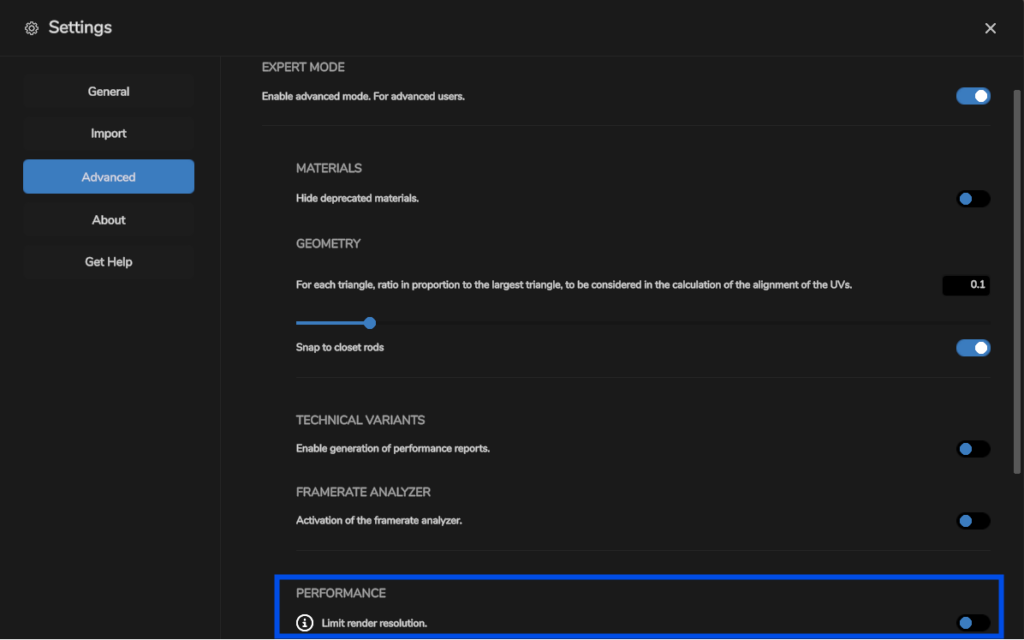
Note: This option only affects real-time rendering while editing a project. It does not reduce the quality or resolution of exported screenshots or videos.
New Dynamic VR Project Reveal
You can now create a more memorable virtual reality presentation with the new Enable Project Reveal option. Instead of displaying the entire project immediately inside the headset, VORTEK Spaces can gradually reveal it with an animated transition.
This feature gives you more control over your project’s first reveal in the headset – turning the reveal of a VR presentation into a more interactive and engaging experience.
To use this feature, open Settings > VR and enable Enable Project Reveal.
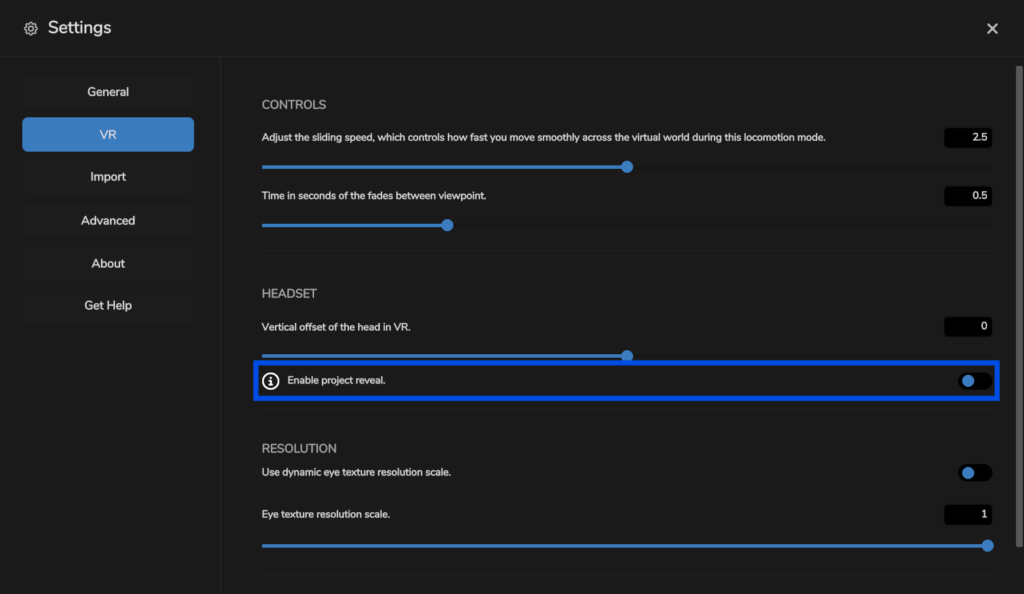
You can then select the reveal animation you want to use. When the option is enabled, the project will remain hidden inside the VR headset until you click the AR button in the lower-right corner of the application. The project will then gradually appear inside the headset using the selected animated transition.
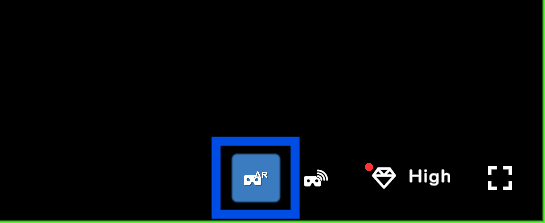
Requirements: Dynamic project reveals require the VORTEK Spaces VR Experience extension and the Virtual Desktop application. This feature is only available on Meta Quest 3, Meta Quest 3S or Meta Quest Pro headsets or newer.
For more information on how to enable dynamic reveals, contact our technical support team.
Ultra Quality Photo Generation & New Presentation Options
Export All Viewpoints at Maximum Quality
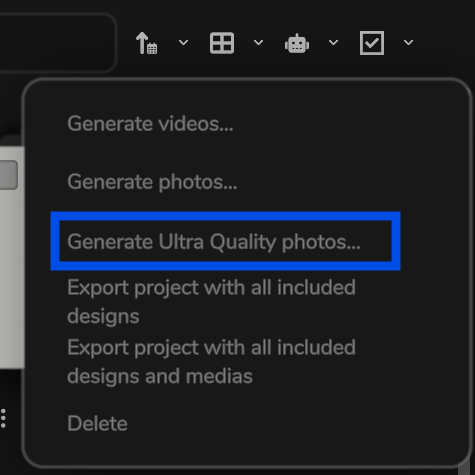
You can now export all your project’s viewpoints at maximum quality with a single click. This new option joins the existing bulk actions available from the project list, making it easier to generate a complete set of high-quality presentation images without generating each viewpoint separately.
This new option is available from the upper right corner menu of the project list :
Control the Maximum Door Opening Angle
Expert Mode users can now control the maximum opening angle of doors during opening animations, giving you more control over how cabinets and other animated elements are presented in videos and interactive project demonstrations.
To enable this option, open Settings > Advanced and toggle Expert Mode. Then, from the Visit tab, select one of your opening animations and look for the Advanced Properties menu.
Show or Hide Shelf and Screw Holes
A new import option allows you to chose whether or not to display or remove shelf and screw holes from imported projects. To configure this setting, open Settings > Import and toggle the “Remove small cabinet drillings” option.
Shelf and screw holes are removed by default, helping imported projects maintain a cleaner appearance. You can display them when their visibility is useful for your presentation or project review.
Redesigned Project Loading Pages
The project loading pages have been redesigned to provide clearer progress information and a more polished visual experience.
- Project preview images are no longer stretched or distorted while a project is loading.
- More detailed loading steps make it easier to follow the progress of an operation.
- The loading cancellation button is now more responsive.
Refined Import System
This update resolves visual issues affecting projects imported from Cabinet Vision and Mozaik.
- Cabinet Vision projects containing a ceiling with a thickness of
0should now display correctly after import. - Fixed a rendering issue affecting certain doors and cabinets imported from Mozaik projects.
Other Fixes & Improvements
- Suffixes have been added to exported video, screenshot and Ultra Quality screenshot filenames, making the different export types easier to identify.
- Users who have exceeded their sign-in grace period should now see the correct error message.
- Fixed an issue affecting clothing replacement on certain hangers in Closet Pro projects.
- Fixed an issue that prevented LED strips from being included in object entrance/exit animations.
- Fixed an issue that could cause handle outlines to remain visible.
- Corrected the appearance of certain tiles and ceramic materials.
- Corrected the appearance of certain projects when using Medium quality mode.
- Other fixes: Minor improvements have been made to Power Saving Mode, thumbnails, the user interface and other areas of the application.
Frequently Asked Questions
Does limiting the rendering resolution reduce screenshot or video quality?
No. The Limit Render Resolution option only affects real-time rendering while you edit a project. Screenshots and videos will continue to use their selected export quality and resolution settings.
Who should enable the rendering resolution limit?
This option is particularly useful for users working with displays that have resolutions higher than Full HD, including 2K and 4K monitors. It can improve responsiveness by limiting the real-time project rendering resolution to 1920 × 1080.
How do I enable the dynamic VR project reveal?
Open Settings > VR, enable Enable Project Reveal and select your preferred reveal animation. During project presentations, click the AR button in the lower-right corner of the application to start the animated reveal inside the headset.
What equipment is required for the dynamic VR project reveal?
The feature requires the VORTEK Spaces VR Experience extension, the Virtual Desktop application and a Meta Quest 3, Meta Quest 3S, Meta Quest Pro headset or newer.
Can I try VORTEK Spaces for free?
Yes. VORTEK Spaces offers a free trial — no credit card required. Start your free trial →
How do I update to VORTEK Spaces?
Download the latest version directly from your VORTEK Spaces application, or check for updates on the VORTEK Spaces Microsoft Store page.
Get the Latest Version
Start your free 14-day trial — no credit card required →
Already a subscriber? See all plans and pricing → · Watch video tutorials →