
Assets Pre-download, Side View Camera Option & Quality of Life Adjustments
Version 4.0.56206 · October 29, 2026
A brand new VORTEK Spaces update is on its way! This new update introduces features designed to help you work more efficiently, prepare library content in advance and create more detailed project presentations.
Expert Mode users can now download complete categories of models and materials, while the new camera alignement tool offers a better way to present interior spaces. Mozaik projects also gain interactive door and drawer opening, along with several quality-of-life and stability improvements.
Important: After installing this update, some model replacements may have been removed. We recommend reviewing the replaced models in your existing projects to confirm that they were preserved.
| Feature | What Changed |
|---|---|
| 🆕 Category Downloads | Expert Mode users can download complete categories of models and materials in advance for faster placement and offline use. |
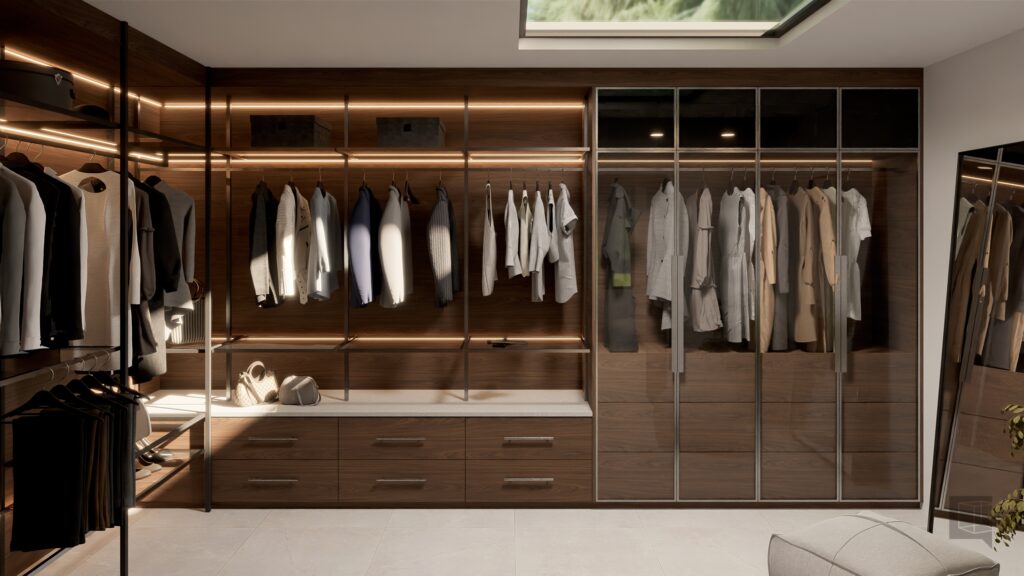
| 🆕 New Side View | Render countertops, closets and other interior elements more easily with a new adjustable cutaway camera view. |
| ⚙️ Mozaik Door and Drawer Opening | Doors and drawers from Mozaik projects can now be opened interactively and animated in videos. |
| 💡 Quality-of-Life Adjustments | Many actions can now be cancelled, along with a lot of quality of . |
| 🎬 Improved Video Presentations | Object entrance animations no longer reveal the entire design on the video presentation page. |
| 🐛 Bug Fixes and Improvements | This update also includes performance warnings, import fixes, VR corrections and several stability and interface improvements. |
Pre-Download Item Categories for Faster Workflfows
Expert Mode users can now download complete categories of models and materials from the VORTEK Spaces library in advance. This new feature helps reduce loading interruptions when placing an item for the first time and makes downloaded content available even when you do not have an internet connection.
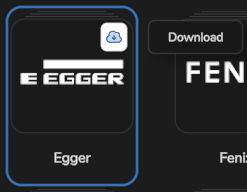
To download content, activate Expert Mode in the Settings > Advanced tab, then right-click a category in the models or materials library and select Download. VORTEK Spaces will download the available content from that category to your device.
A new option called “Show downloaded content” is also available from the … menu at the top of the models and materials lists. Use this option to show or hide the download status of library content.
- Content that has not been downloaded is identified by a blue cloud icon.
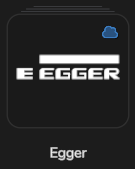
- Click the blue cloud icon beside a category to start downloading its content.
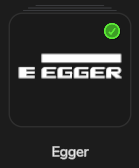
- Downloaded content is identified by a green check mark.
Preparing frequently used categories in advance can make your workflow smoother during customer presentations, live demonstrations or work sessions with limited internet access.
Note: Category downloads are not supported for Wayfair content.
New Side View Camera Option
A new button is now available alongside the existing top-down option. Side view repositions the camera and cuts away objects located in front of it, giving you a clearer view of interior elements that might otherwise be hidden.
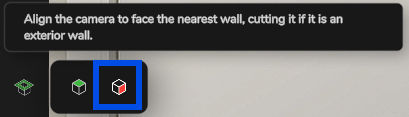
This camera option is especially useful when presenting countertops, closets and other interior areas. It allows you to create a clean cutaway view without manually hiding every object located between the camera and the area you want to show.
Similar to the existing top-down view, side view allows you to configure the cut distance. The camera automatically adjusts to the cut surface, helping you frame the visible area of the project more accurately.
Open Doors and Drawers in Mozaik Projects
You can now open doors and drawers in projects imported from Mozaik! This gives you more ways to showcase cabinet interiors, storage configurations and hardware movement during project presentations.
The feature works like the existing door and drawer opening tools. Select the opening tool from the left-side menu, select a compatible handle, then drag the mouse to begin opening or closing the associated door or drawer.
Door and drawer opening video animations are also compatible with Mozaik projects, allowing you to include these movements in recorded project presentations.
Quality-of-Life Improvements
Cancel Ultra Quality Picture Generation
You can now cancel an Ultra Quality picture while it is being generated. This gives you more control when an export was started accidentally or when you need to tweak the camera, lighting or presentation settings before generating the final image.
Improved Video Presentation Previews
The video presentation page no longer displays the complete design when an object entrance animation has been added. This prevents the final arrangement from being revealed before the animation begins, helping you preserve the intended effect of your video presentation.
Clearer Loading Information
The name of the item currently being added is now displayed while it loads. This makes it easier to identify which Model or material VORTEK Spaces is processing, especially when using larger library items or working with a slower connection.
Pro-tip: You can cancel the loading of an item by pressing the Escape (ESC) key !
New Project Performance Warnings
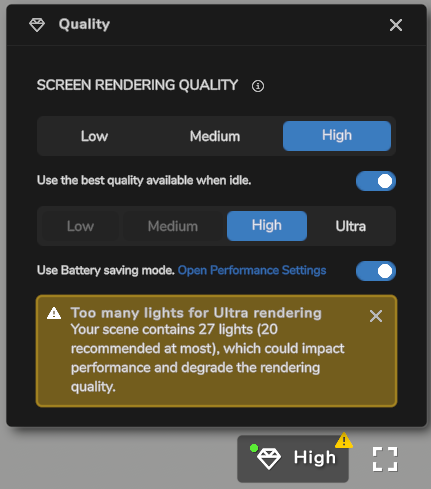
New warnings can now appear in the performance menu located in the lower-right corner of the application. These warnings help you identify project elements that could negatively affect application performance or rendering quality.
- A performance warning appears when a project contains an imported model that is excessively large.
- A rendering warning appears when a project contains too many lights. The warning threshold changes according to the selected quality level.
These indicators can help you identify potential issues before exporting medias or presenting a project, allowing you to simplify heavy models or reduce the number of lights when necessary.
Other Fixes & Improvements
- The “Remove small cabinets drillings” option is now disabled by default.
- Fixed several rendering issues affecting Ultra Quality mode.
- Fixed an issue that could duplicate certain models imported from Cabinet Vision or prevent them from being deleted.
- Fixed drawer opening in certain Cabinet Vision projects.
- Fixed an issue that prevented viewpoints from being saved from the Gallery tab.
- Fixed an issue that prevented the profile icon from updating after a network connection was lost.
- Fixed an issue that prevented certain
.dxfprojects containing very large models from opening. - Virtual Reality Mode : fixed an issue that prevented the top bar from disappearing in full-screen mode.
- Other fixes: Additional improvements have been made to
.skpand Mozaik imports, application performance, the user interface and other areas of VORTEK Spaces.
Frequently Asked Questions
How do I download a category of Models or materials?
Activate Expert Mode through the Settings > Advanced tab, then right-click a category in the Models or materials library and select Download. You can also display download indicators from the … menu at the top of the library and click a category’s blue cloud icon to download it.
Can I use downloaded Models and materials without an internet connection?
Yes. Once a supported category has been downloaded, its content can be used without an internet connection. Downloading categories in advance also prevents the initial loading delay when placing an item for the first time.
What does the new side view camera option does?
Side view repositions the camera and cuts away objects located in front of it. You can adjust the cut distance to show interior elements such as countertops, closets and storage areas more clearly. You can use it in exterior presentations to cut the front wall and get a view of the project’s interior.
Can doors and drawers from Mozaik projects be animated in videos?
Yes. Compatible doors and drawers from Mozaik projects can be opened interactively, and their opening animations can be included in videos.
Can I try VORTEK Spaces for free?
Yes. VORTEK Spaces offers a free trial — no credit card required. Start your free trial →
How do I update to VORTEK Spaces?
Download the latest version directly from your VORTEK Spaces application, or check for updates on the VORTEK Spaces Microsoft Store page.
Get the Latest Version
Start your free 14-day trial — no credit card required →
Already a subscriber? See all plans and pricing → · Watch video tutorials →